Upload the lecture recording to AI Music Remover, tap Not sure what to keep? and pick Just the voice, then play the free preview of the first 30 seconds: the teacher stays and the beat underneath goes. Process the whole class when it sounds right, and download the video, or the voice alone as MP3 or WAV for captions and transcripts.
Why a music bed makes a lecture harder to use
Course videos often come with a soft beat under the talking. Someone added it in the edit to make a long take feel less empty, or the recording picked up a track playing in the hall. It sounds harmless the first time, but it follows the lesson everywhere it goes next: into the caption file, the translation, the clip you cut for a new course and the ears of every student who would rather study in quiet.
An editor can’t mute that beat on its own, because it was mixed into the same sound as the speaker. What you need is a way to pull the recording apart into the teacher’s voice, the sounds of the room and the music, then keep only the part you want. That is what AI Music Remover does, and the table below is the short list of reasons people come to it with a lecture.
| The problem | Why it happens | The fix |
|---|---|---|
| Auto captions miss words | The beat sits under every sentence the caption tool listens to | Keep Just the voice and give the caption tool the WAV |
| A dubbed or translated version sounds muddy | The new voice is laid over the old music | Start the dub from the voice track instead of the full mix |
| Reused clips clash with a new intro | The old bed is baked into every clip | Remove the music once, then cut the clips |
| Students ask for a version without music | The only copy you have has the beat in it | Process the class on Voice only and upload it as a second version |
| The hall has a long echo | A ringing room can sound a little like music | Tap Still hear music? and keep Sound effects up |
Step 1: Get the lecture as a file
The tool works on a file you have, not on a link, so start from the recording itself: the export from your screen recorder, the file your camera wrote, or the master your course platform let you download. It opens MP4, MOV, WEBM and MKV video and MP3, WAV and M4A audio. Only the sound is sent for processing; the picture of the lecture stays on your computer the whole time. By uploading you confirm you have the rights to the file, which for your own classes is the easy part.
Lectures are long, so check two limits before you start. The file can be up to 1.5 GB on a computer, or 200 MB on a phone. Free minutes cover recordings up to 10 minutes, and any plan or pack lifts that to 100 minutes. A double session or a full-day workshop needs cutting into parts in your editor first; each part then goes through on its own.
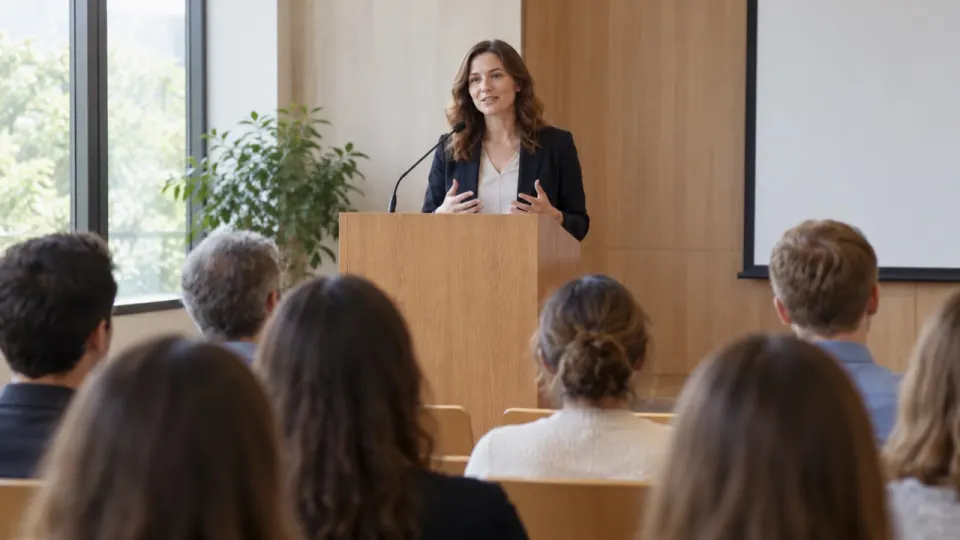
We walk the rest of the guide on a short real recording: a lecturer explaining how sound works, in three shots, with a calm beat playing under the whole thing. These are the three lines spoken in it.
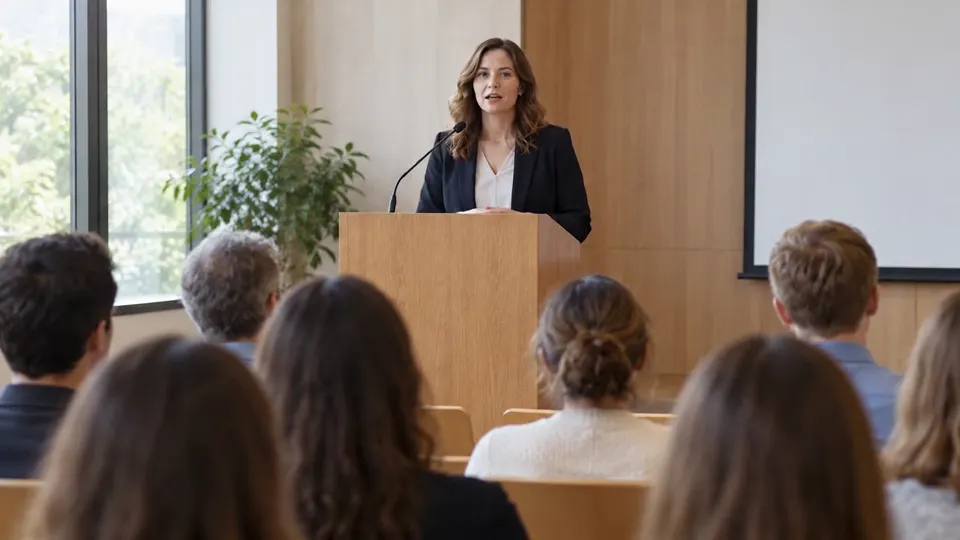 “Sound is just air pressure changing over time.”
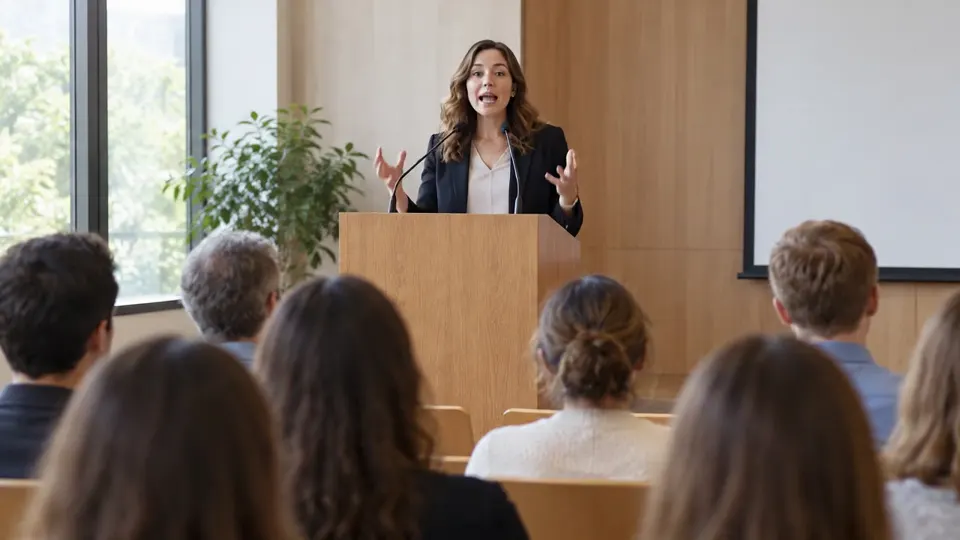 “When two sounds mix, the waves simply add up.”
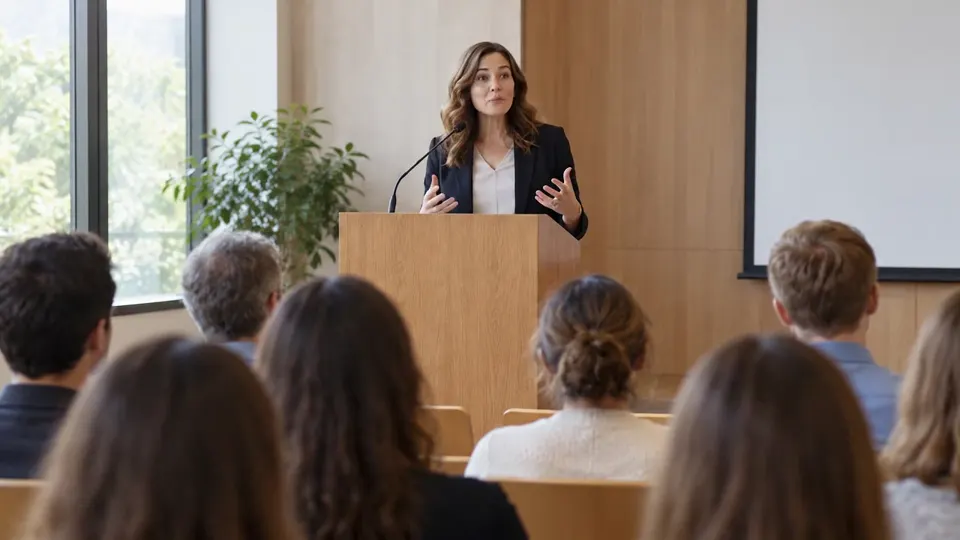 “So the hard part is taking them apart again.”
Step 2: Choose Just the voice
Under What to remove, the tool starts on Remove music, which keeps the voice and the sound effects. For most lectures you want to go one step further. Tap Not sure what to keep? and choose Just the voice; its hint even lists lectures next to interviews and voice-overs. That keeps the speaker and drops both the music and the room.
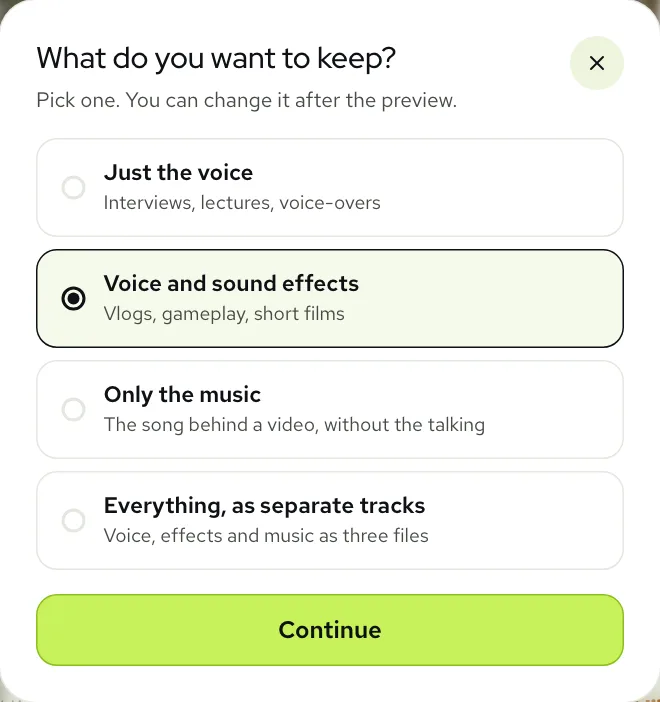
| What to keep | Pick it when | What drops out |
|---|---|---|
| Just the voice | The lesson is the talking and nothing else | Music, coughs, chairs, page turns, projector fan |
| Voice and sound effects | The class includes a demo you need to hear, or audience questions and laughter | Only the music |
| Everything, as separate tracks | You want to rebuild the mix in your editor | Nothing; you get voice, effects and music as three files |
One choice to avoid: Remove vocals. It is built for songs, and it counts speech as vocals, so on a lecture it would take out the teacher and keep the beat. If you clicked it by mistake, switch back; the choice can change after the preview.
Step 3: Check the free preview
The preview covers the first 30 seconds of the class and costs nothing, up to 3 files a day without signing up. Here is the real result on the lecture example, opened on Voice only. Play it, then flip to Original to hear what was there before.
Real result, not edited afterwards. The voice and video are AI-generated. Music: “Chill Beat”, Maddy (CC0).
With a lecture, the test is clarity rather than atmosphere. Listen to the ends of words, where an s or a t is easy to lose, in a line like “Sound is just air pressure changing over time.” Then listen to the short silences between the three shots: with the music gone they should be properly quiet, not filled with a faint pulse. Finally, switch to Music only for a few seconds. If you hear syllables of the lecturer in there, the split took some of the voice with it, and that is the moment to try the fix in the next step.
Listen on headphones if you can. A lot of students will watch on earbuds, and those reveal quiet traces that a laptop speaker smooths over.
Step 4: Voice only, or a soft bed?
Most courses want the music gone completely. Some prefer to keep a hint of it, so the video doesn’t feel bare between sections. Both are a slider move away, and the card below plays the lecture example at the plain Voice only mix.
- For a quiet bed, switch the player to Sliders and bring Music up to around 10 or 15. The beat sits far under the voice instead of next to it.
- For a hall with questions from the floor, lift Sound effects so the room and the audience come back while the beat stays out.
- If a trace of the beat is left in the gaps, tap Still hear music? under the result. It runs the recording once more with a deeper pass for free and replaces the result when it’s done.
Whatever you set is what you download. The mix carries over from the preview to the full class, so you only make this choice once.
Panels, interviews and recorded talks
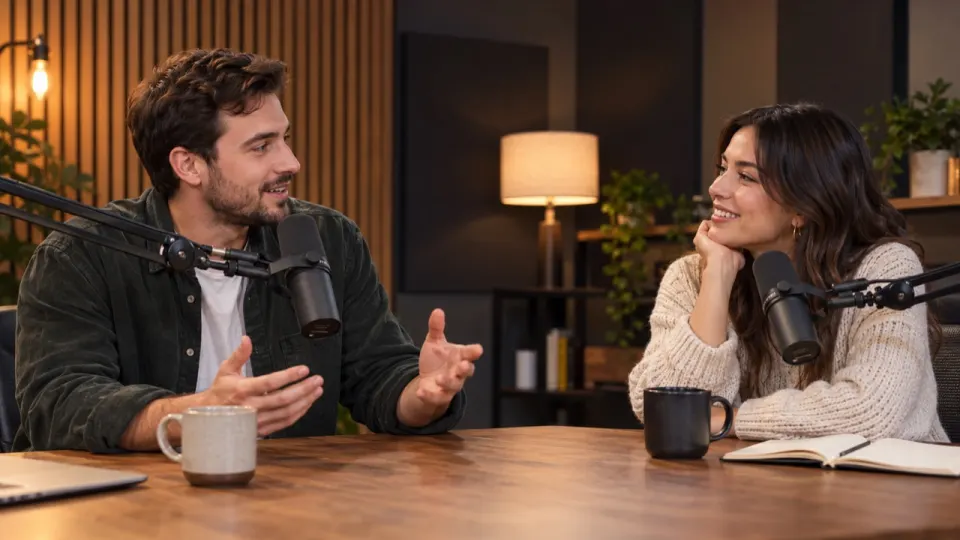
Not every spoken recording is one person at a lectern. A panel, a guest talk or a recorded conversation has more than one voice, plus reactions from the people in the room. The podcast example below has a host and a guest, a music bed and a burst of laughter around fourteen seconds.
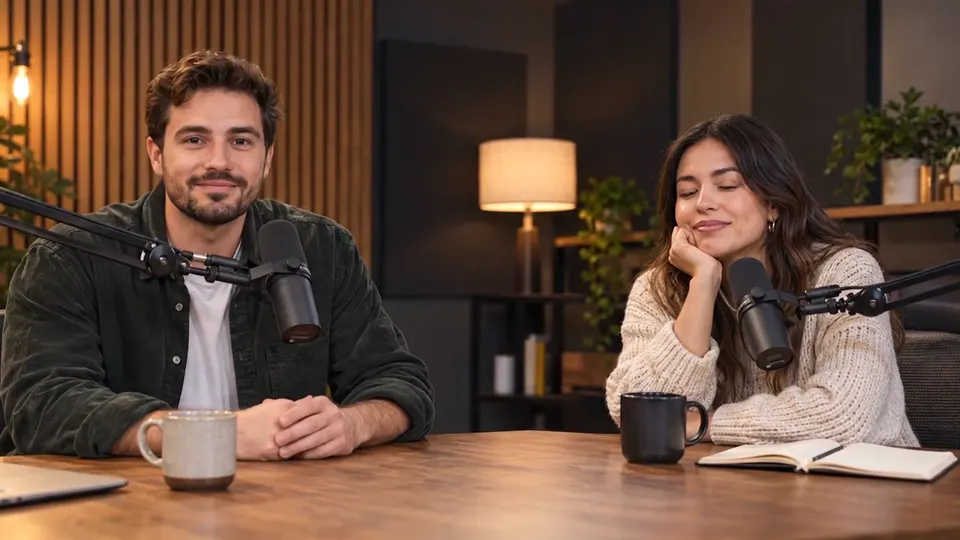 “Hi everyone, welcome back to the show.”
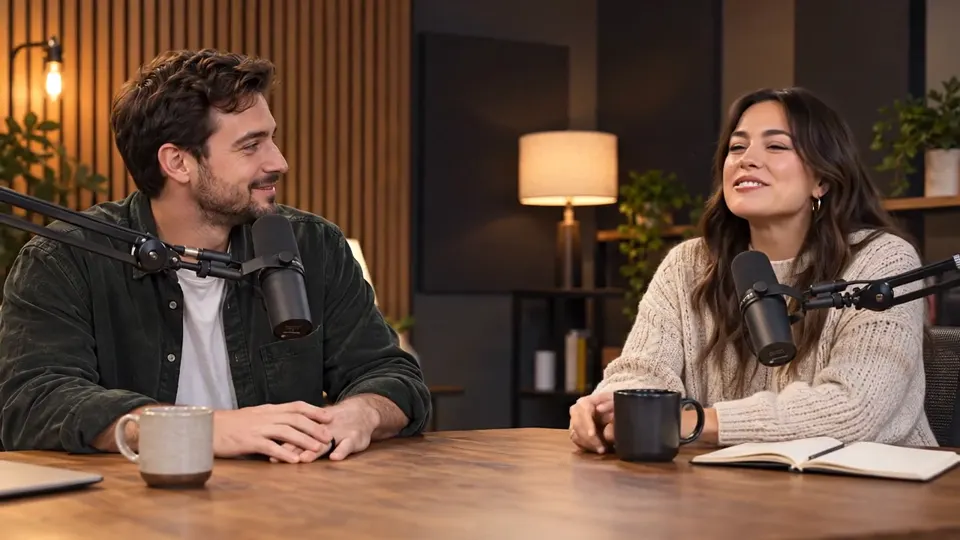 “Thanks for having me, this is my first podcast ever.”
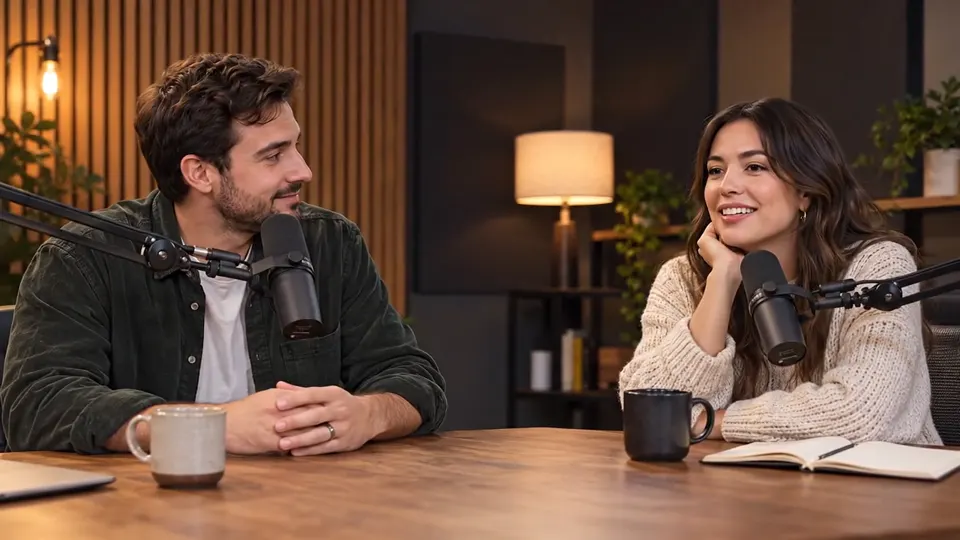 “So tell us, how did the whole thing start?”
Every speaker lands in the same Voice track, so you don’t need to do anything special for a second voice. The laughter is a different story: it is a reaction, not speech, so it sits with the sound effects. If you want to keep it, use Voice and sound effects instead of Just the voice. There is more on spoken shows in the podcast guide, and you can play every example we have on the examples page.
Step 5: Process the whole class and pick a download
Tap Process full video when the preview is right. The button tells you how many minutes it will use: the length of the recording, counted by the second. A new account starts with 10 free minutes; after that, packs begin at $9.99 for 120 minutes and plans at $9.99 a month for 200 minutes. The pricing page has the full list.
A long class takes a few minutes to process. You don’t need to wait on the page: close the tab and we email you when the file is ready. If processing fails on our side, the minutes are returned to your account automatically.
| You want to | Download | Why this one |
|---|---|---|
| Upload the clean class to your course | Download video (MP4) | Same picture as your recording, new soundtrack |
| Make captions or a transcript | Audio (WAV) | Full quality, only the voice for the caption tool to hear |
| Publish the lesson as an audio episode | Download audio (MP3) | Small file that any player opens |
| Re-edit the sound later | Stems (ZIP) | Voice, effects and music as separate files that line up |
The finished class stays in My files for 3 days on a free account and 7 days on a paid one. Within that time you can reopen it, change the mix and download again without spending more minutes.
Questions to ask before you clean a lecture
Whichever tool you use for this, these are the questions worth answering first. Our answers are next to each one.
- Does it need the file, or can it take a link? Here it needs the file.
- Does it keep only the voice, or the room too? Both are options: Just the voice, or Voice and sound effects.
- Can I hear it before I pay? Yes, the first 30 seconds are free.
- Do I get the same video back? Yes; only the soundtrack changes, and the picture is the one you recorded.
- What if it fails halfway through a long class? The minutes come back to your account.
- How long can the recording be? Up to 100 minutes on any plan or pack, 10 minutes on free minutes.
Questions
Can I remove background music from a lecture video for free?
Yes, for the first 30 seconds: the preview is free with no sign-up, 3 times a day. A new account adds 10 free minutes for full recordings, and after that plans start at $9.99 a month for 200 minutes, or packs at $9.99 for 120 minutes.
Will the lecturer be harder to understand without the music?
No, usually the opposite: with the beat gone there is nothing competing with the words. Check the ends of words in the free preview, and if a trace of music is left, tap Still hear music? for a free deeper pass.
Can I remove music from a lecture I watch online?
Only if you have the recording as a file. The tool opens files, not links, and by uploading you confirm you have the rights to the file.
How long can a lecture be?
Up to 100 minutes with any plan or pack, and 10 minutes on free minutes. Cut longer sessions into parts and upload them one by one.
Which download is best for subtitles?
Audio (WAV) on Just the voice. It gives your caption or transcript tool the speech in full quality with nothing else in it.