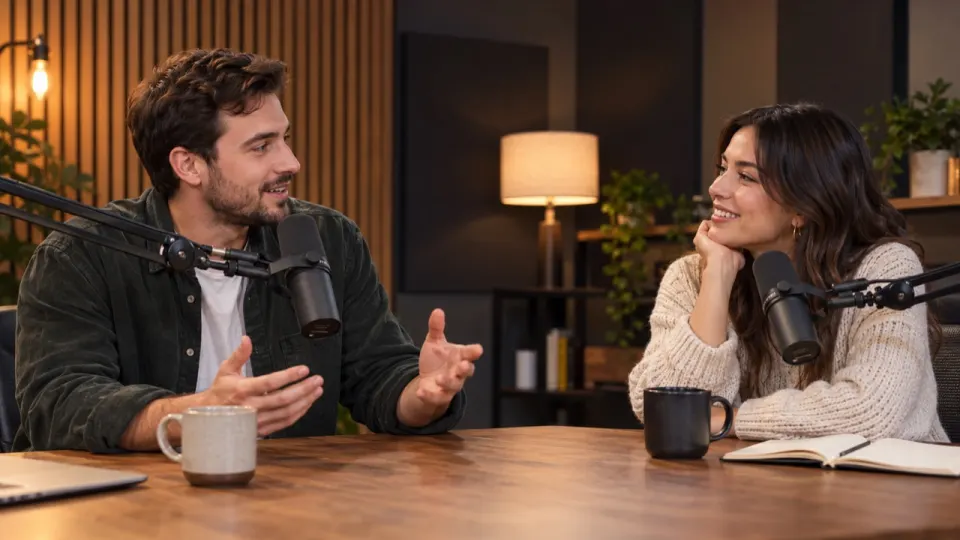
Pick a tool that splits the sound into voice, sound effects and music, not just vocals and the rest. In AI Music Remover that is the default, Remove music: it drops the Music track and keeps Voice and Sound effects, so applause, laughter, footsteps and clicks stay. Check it on the free preview of the first 30 seconds before you process anything.
Can you remove music and keep sound effects?
The most upvoted answer to this question on video editing forums is a blunt one: you can’t unbake a cake. Once a song, a voice and the noise of a room are recorded into one track, there is no button in an editor that lifts one of them out. The pieces are mixed together in every fraction of a second.
That is true of an editor’s mute and volume tools. It is no longer true of separation tools, which listen to the whole track and rebuild each part on its own. The question that matters is how many parts they rebuild. Most separate into two, the singing and everything else, because they were made for songs. For a video you need three.
| Split | What you get | Where the clapping ends up |
|---|---|---|
| Two parts (vocals and the rest) | Voice, and one track holding music plus every other sound | With the music, so removing the music removes the clapping too |
| Three parts (voice, effects, music) | Voice, Sound effects and Music as separate tracks | On its own track, so it stays when the music goes |
AI Music Remover makes three. On the default mode, Remove music, it keeps Voice and Sound effects and drops Music. That is the whole trick; the rest of this guide shows what it sounds like on real footage and how to adjust it.
What counts as a sound effect
In this tool, a sound effect is anything that is not a voice and not music. That covers far more than whooshes and booms added in an edit. It is the life of the place you filmed: the hiss of an espresso machine, a cup set down on a saucer, guests clapping, a click on a gaming mouse, a laugh from across the table, traffic, wind, rain, footsteps.
Laughter is a good test. It comes out of a mouth, so a two-part split usually treats it as voice or loses it in the rest. Here it sits with the effects. Applause and crowd noise behave the same way. When a video loses those sounds it starts to feel dubbed, even when the speech is perfectly clear.
Four real files, four kinds of sound
We pinned the moments to listen for on four of our example results. Each one has music under it the whole way through, and each has a sound that a two-part split would throw away.
| Example | Sound to keep | When | Music underneath |
|---|---|---|---|
| Café vlog | Chatter, a cup and sip, the espresso machine | 0:04, 0:11, 0:22 | Chill Beat |
| Wedding vows | Applause | 0:21 | Golden Slippers |
| Gameplay stream | Mouse clicks | 0:16 | Dance of the Electronic Fairies |
| Podcast | Laughter | 0:14 | Kuri |
Start with the café, because it has the most going on. Open the player on Effects only and you hear just the Sound effects track: the room without the speaker and without the song. Then switch to No music to hear it put back under her voice.
Real result, not edited afterwards. The voice and video are AI-generated. Music: “Chill Beat”, Maddy (CC0).
Next, the gameplay stream. A streamer reacting to a match is a classic case: the background track has to go before the clip can be posted, but the frantic clicking is part of the moment. Here are the three shots of it, with the line said in each.
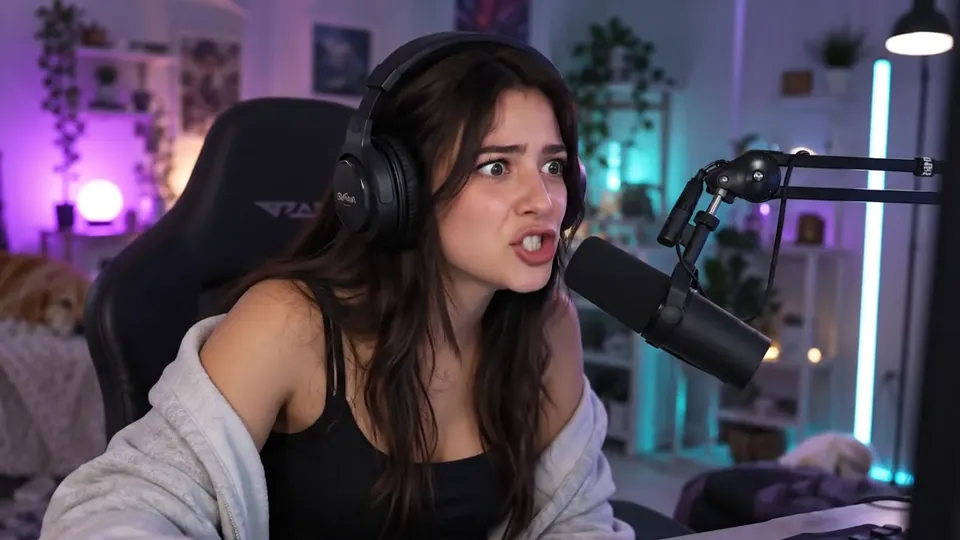 “Chat, chat, look at this, he has no idea I am here.”
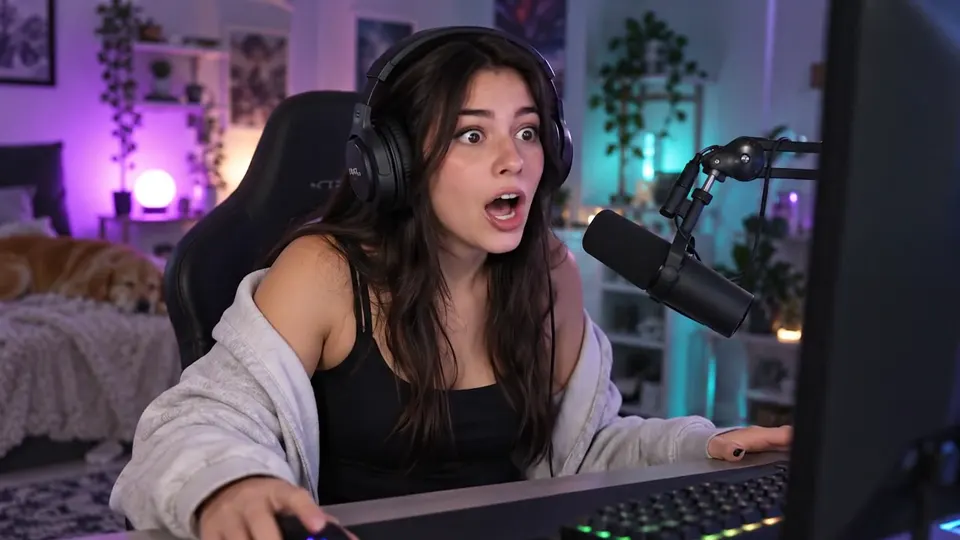 “No way. No way that just worked.”
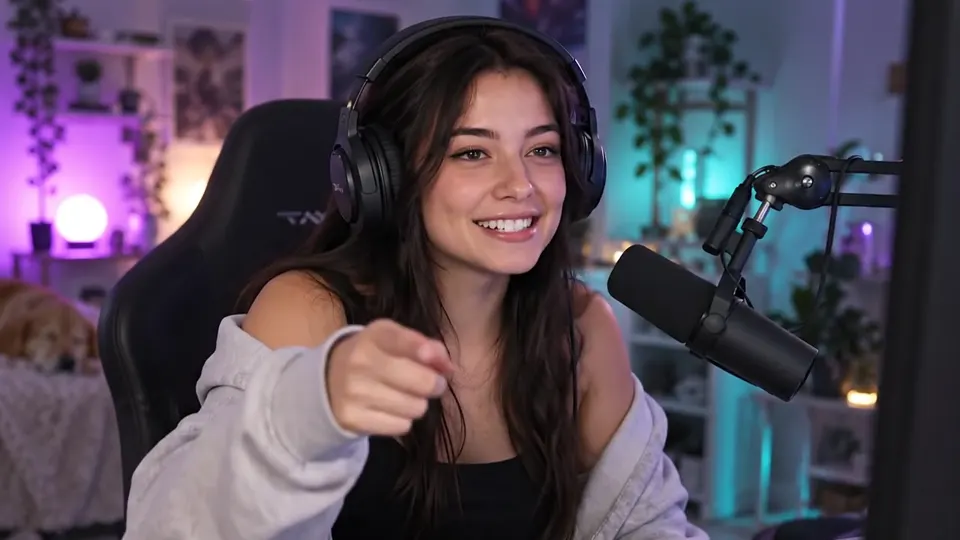 “Okay, clip that. Somebody clip that right now.”
Real result, not edited afterwards. The voice and video are AI-generated. Music: “Dance of the Electronic Fairies”, Monplaisir (CC0).
Before and after: applause and laughter
Two short comparisons. Each card starts on the result; tap Before to hear the original with its music, and After to come back.
Try the same cards in your head with the effects gone: vows that end in silence, a joke that gets no laugh. That is what a voice-only cleanup does to a scene, and why a separate effects track is worth looking for.
How to remove music and keep the sound effects, step by step
- 1Drop your video or audio on the tool. Video stays on your device; only its sound is uploaded, up to 1.5 GB per file on a computer.
- 2Keep What to remove on Remove music. If you are unsure, tap Not sure what to keep? and choose Voice and sound effects.
- 3Play the free preview, which covers the first 30 seconds. Switch between No music and Effects only to hear what was kept.
- 4If the song comes through in the effects, tap Still hear music? for a deeper pass at no cost, or set the Sound effects slider a little lower.
- 5Process the full file. Download the MP4, the mix as MP3 or WAV, or all three tracks as Stems (ZIP).
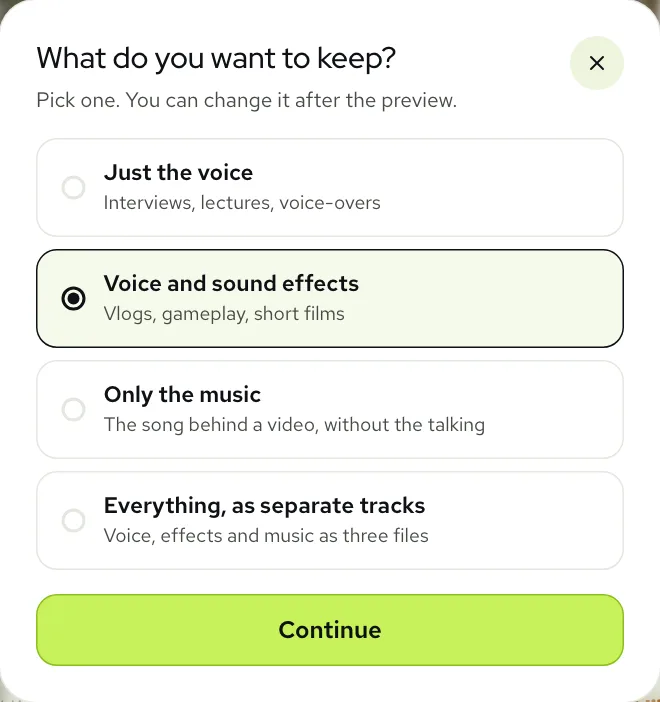
Tuning the balance with the sliders
Presets cover most videos. When one doesn’t, open Sliders under the result and set Voice, Sound effects and Music separately, each from 0 to 100. Nothing is processed again; you hear each change as you make it, and the download follows your settings.
| Problem | Cause | Fix |
|---|---|---|
| A beat ticks quietly under the room noise | Drum hits can sound like knocks and taps, so a trace may land in effects | Still hear music?, then Sound effects at 70 to 80 |
| The room drowns out the speaker | The camera was closer to the crowd than to the person | Lower Sound effects to 50 or 60 |
| The scene sounds dead after the music goes | The room was carried by reverb and murmur in the effects | Keep Sound effects at 100, or bring Music back at 10 |
| An old record’s crackle is still audible | Crackle sounds like a noise, not a note | Lower Sound effects, or use Voice only if nothing else matters |
If you edit the video yourself, skip the balancing here and take Stems (ZIP). With Voice, Sound effects and Music as three files on three tracks, you can raise the applause in one scene and duck it in another. Split stems, on the Stem Splitter page, gives you the same three files from the start.

Questions to ask any music remover
Whatever tool you end up using, these five questions tell you quickly whether it can keep your sound effects:
- Does it split into three parts, or only vocals and the rest?
- Can I hear the effects track on its own before I pay?
- Can I set the level of each part, or only keep or remove it?
- Do I get the parts as separate files for my editor?
- Does my video stay the same, or is the picture redone too?
For AI Music Remover the answers are three parts, yes with the free preview, yes with the sliders, yes with Stems (ZIP), and the picture is never touched. For the difference between a voice isolator, a vocal remover and a stem splitter, see our comparison.
Cost, time and where the result lives
Previews cost nothing, 3 a day, no account. A full run is charged by the second at one minute per minute of sound. Signing up gives you 10 free minutes; after those, a pack is $9.99 for 120 minutes and a plan $9.99 a month for 200 minutes. All prices are on the pricing page.
Longer files can run in the background while you do something else, and an email tells you when the result is waiting. Results sit in My files for 3 days on a free account or 7 days on a paid one, so you can rebalance the effects later without another charge. If a run fails on our side you get its minutes back.
Questions
Can you remove music and keep sound effects?
Yes, with a tool that splits sound into voice, sound effects and music. Remove music in AI Music Remover drops only the Music track, so applause, footsteps, laughter and room noise stay.
How do I remove background music only and keep the voices and sfx for free?
Yes, to start: the preview of the first 30 seconds is free with no account, 3 times a day. For whole files, new accounts get 10 free minutes; after that, plans start at $9.99 a month for 200 minutes, or packs at $9.99 for 120 minutes.
Why does a vocal remover take the sound effects away?
Because it splits sound into two parts. Everything that isn’t singing goes into one track with the music, so when you drop the music the effects go too.
Is laughter a voice or a sound effect?
Here it is a sound effect. In our podcast example the laugh at 0:14 lands on the Sound effects track and stays when the music is removed.
Can I download the sound effects as their own file?
Yes, in Stems (ZIP). It holds Voice, Sound effects and Music as three separate files that line up with your video.