Take the song out of the file before you upload it: run the video through AI Music Remover, keep the voice and the room, and post the clean version so no claim is raised. If the video is already live with a claim, YouTube Studio can trim the part, swap the song, erase it or mute the segment, but each of those loses something, and since June 2025 saved edits are permanent. The first 30 seconds of our cleanup are free to try.
A claim or a strike: know which one you have
Most creators who search for this have a Content ID claim, not a strike, and the two are very different. A claim is YouTube’s automatic match: a rights holder registered a recording, and the system heard it in your video. YouTube says a claim is not a copyright strike and usually has no effect on your channel as a whole.
A strike is heavier. YouTube issues one after a valid legal request to take a video down. Three strikes put the account at risk of being terminated, and a strike expires after 90 days once you finish Copyright School. YouTube also points out that a claim can turn into a strike: if you dispute it without a valid reason and the owner then files a takedown, the dispute ends with a strike instead of a cleared claim.
| Content ID claim | Copyright strike | |
|---|---|---|
| Where it comes from | An automatic match against a registered recording | A legal removal request from the owner |
| Effect on the channel | Usually none, YouTube says | Three strikes risk the whole account |
| How it goes away | Remove, mute or replace every claimed part | Expires after 90 days once Copyright School is done |
What YouTube Studio offers, and what each one costs you
Open the video in YouTube Studio, go to the copyright details and you get a short list of fixes for the claimed segment. According to YouTube, the claim is lifted once every piece of claimed content has been muted, replaced or trimmed. Leave one claimed piece in and the claim stays.
| Studio option | What it does | What you lose |
|---|---|---|
| Trim out segment | Cuts the claimed stretch out of the video | Everything in that stretch, picture and talk included |
| Replace song | Swaps the claimed track for one from the YouTube Audio Library | The original mood, and the new track sits under your voice anyway |
| Erase song | Mutes only the claimed song and keeps dialogue and effects | Nothing, when it works; YouTube warns it may not on hard songs |
| Mute all sound | Silences the whole claimed segment | Your voice and every other sound in that part |
YouTube itself says muting all sound is usually quicker and more likely to clear the claim than Erase song. That tells you something about Erase song: it is the gentle option, and on a loud song with singing, or a track mixed close to your voice, it can come back unable to separate the two. In that case YouTube suggests falling back to muting the segment or trimming it, which is exactly the trade you were trying to avoid.
Before you press Save in Studio
Since June 2025, edits saved in YouTube Studio are permanent. There is no undo and no way to put the old version back, so YouTube suggests downloading your video before you edit it. Do that first, even if you plan to trust Erase song; the download is also the copy you’ll need if you end up cleaning the sound yourself.
- Trimming in Studio only works on videos shorter than six hours, so a long stream archive may not offer it.
- Channels outside the YouTube Partner Program may not be able to save edits on a video with more than 100,000 views. Blurring faces is the one edit YouTube makes an exception for.
- Trimming in Studio needs no new upload, so the video keeps its URL, its views and its comments.
If none of the Studio options keeps what you need, the remaining route is to fix the sound on your side and upload again. Keep in mind that a new upload gets a new URL, and its views, watch time and comments start from zero.
When to clean the file yourself instead
Studio works after the fact, on a video that is already claimed. Cleaning the file yourself works before anything is posted, which is where it shines. Three situations make it the better choice:
- 1The video isn’t up yet. A song in the background of a vlog, an interview recorded near a speaker or a cover track you used while editing will very likely be matched. Take it out first and no claim is raised at all.
- 2Erase song failed on a part you need. If the claimed stretch is where you explain the main point, trimming or muting it guts the video. A cleaner separation on your side keeps the talk and drops the track.
- 3You’re posting the same clip in more than one place. A clean master file works for YouTube, Shorts, Reels and TikTok without fixing each upload separately.
Cleaning a video with AI Music Remover, step by step
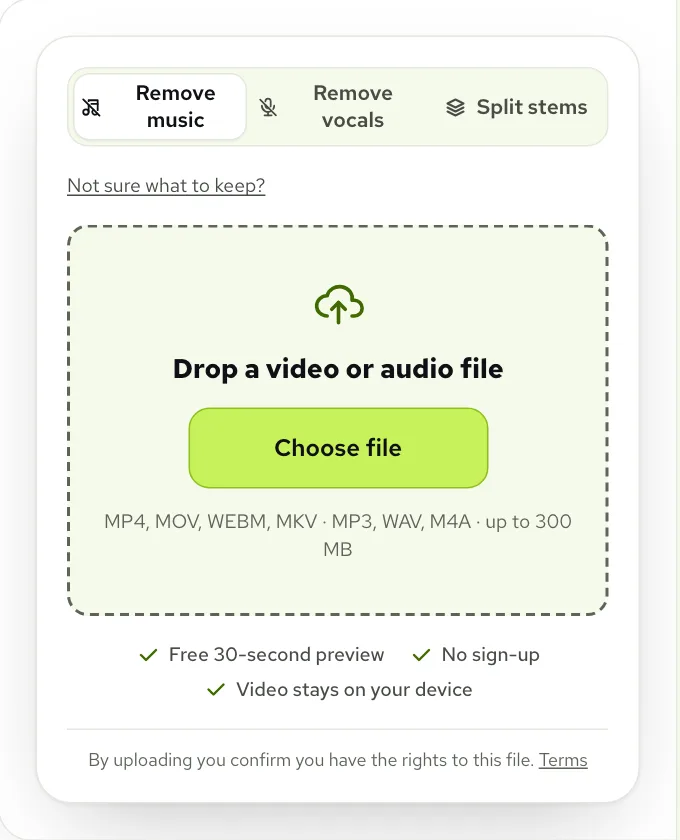
- 1Open Remove copyrighted music from video and click Choose file. MP4, MOV, WEBM and MKV all work, up to 1.5 GB on a computer.
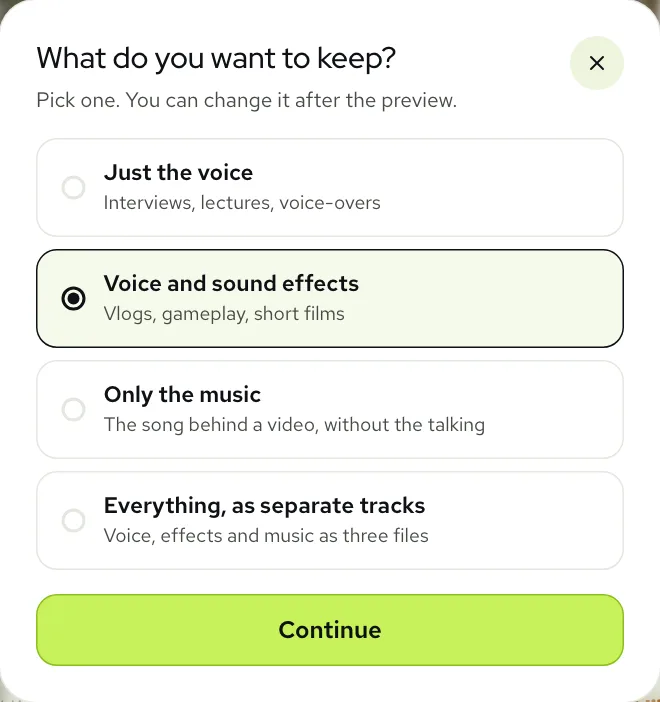
- 2Leave the mode on Remove music. If you aren’t sure what to keep, click Not sure what to keep? and pick an answer.
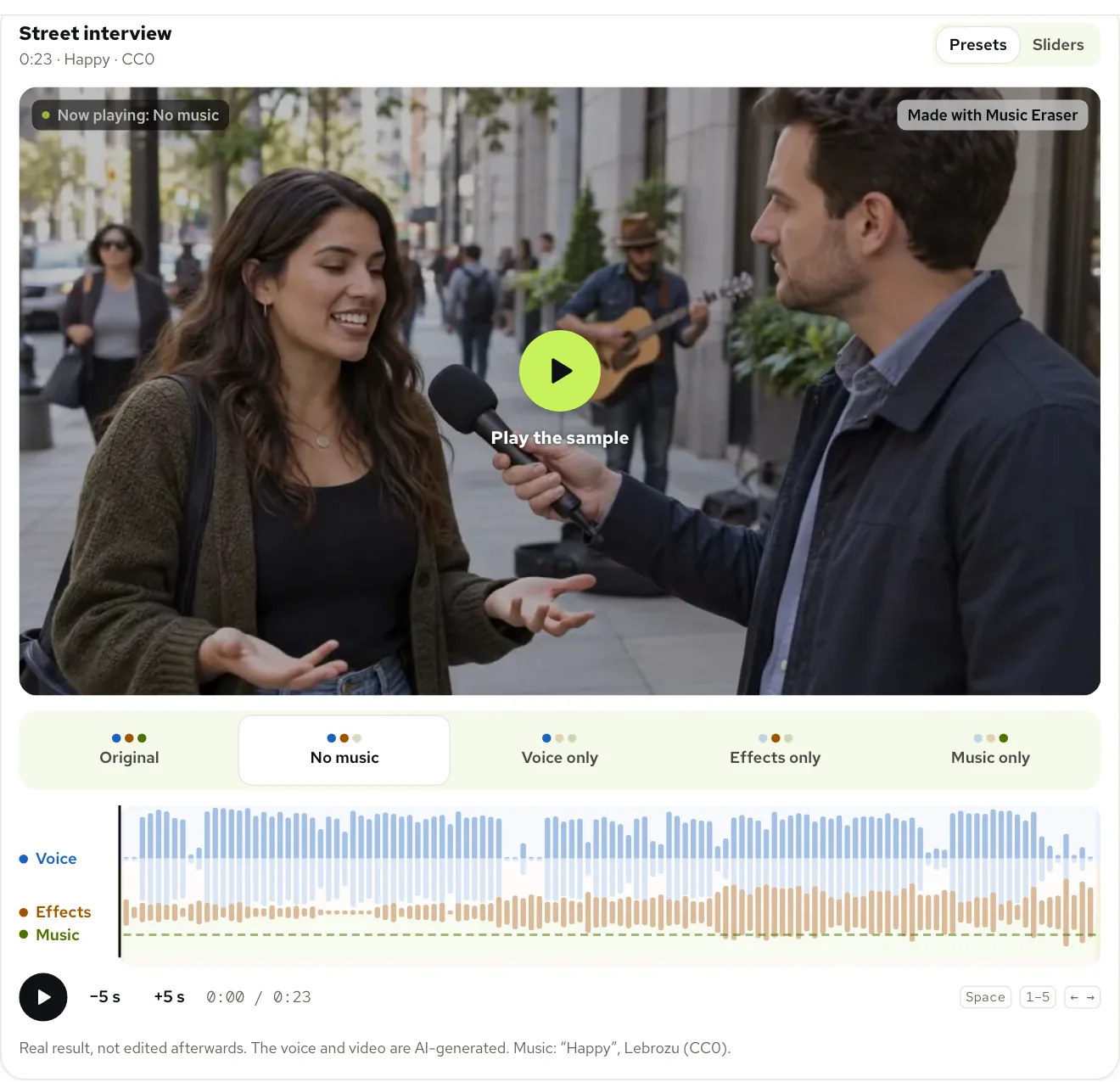
- 3Listen to the free 30 seconds preview with headphones. No account is needed for it, and you get 3 a day.
- 4If a trace of the song is still there, click Still hear music? for a deeper pass, or lower the Music slider to zero.
- 5Click Process full video, then Download video (MP4) and upload that file to YouTube.
Only the sound leaves your computer. The tool reads the audio out of your file, separates it and lays the new soundtrack back onto your own frames in the browser, so the picture is never sent anywhere.
What a cleaned video sounds like
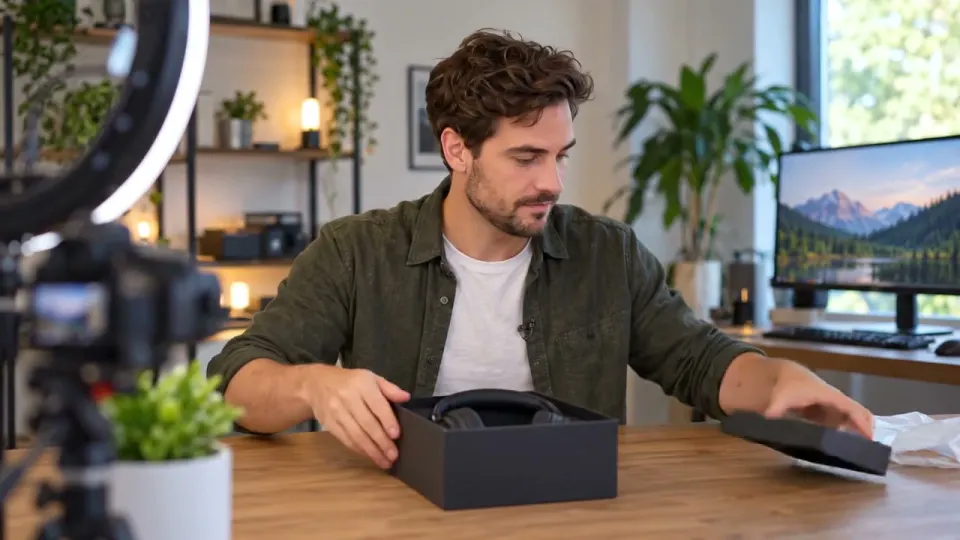
Here is a real clip from our examples: a desk unboxing, the kind of video that gets claimed because a song was playing in the room while it was filmed.
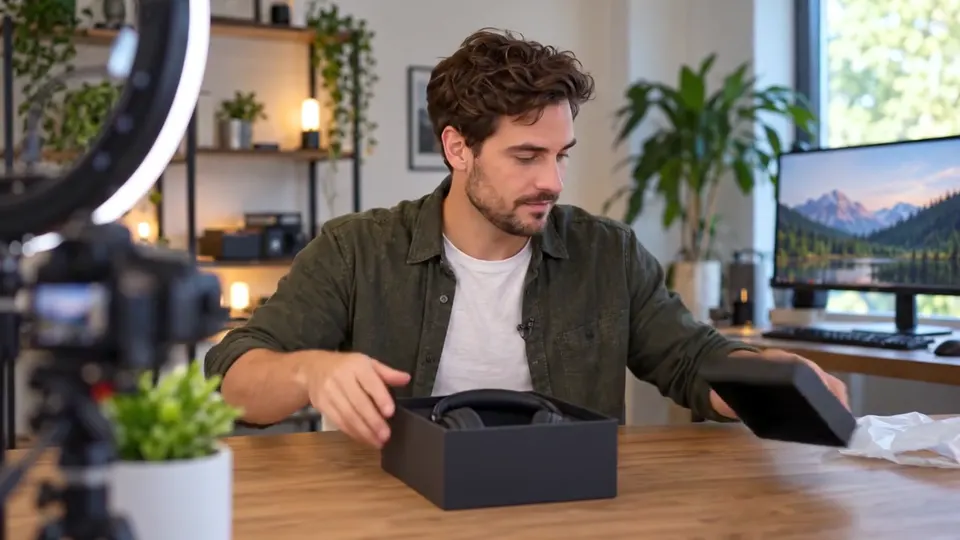 “Okay, new headphones, let us take a look.”
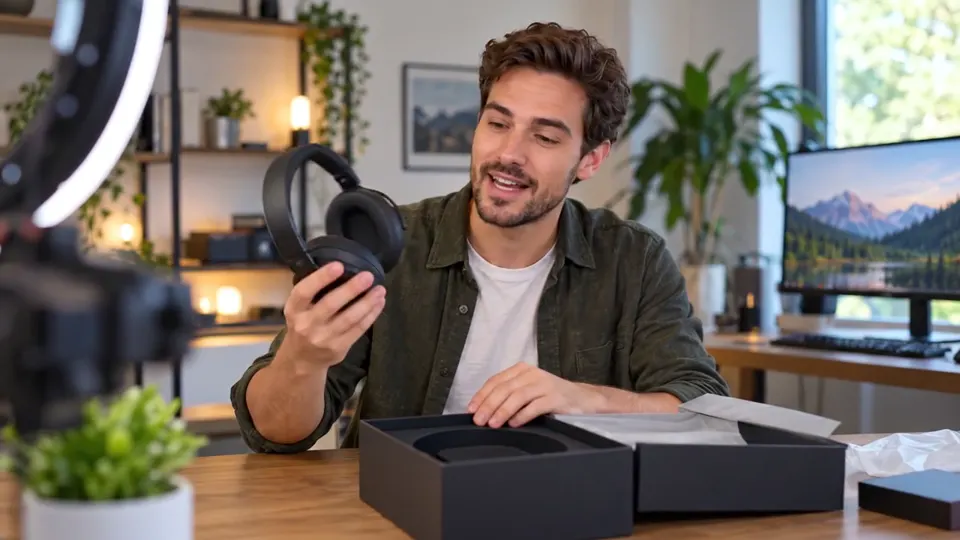 “First impression, they are a lot lighter than I expected.”
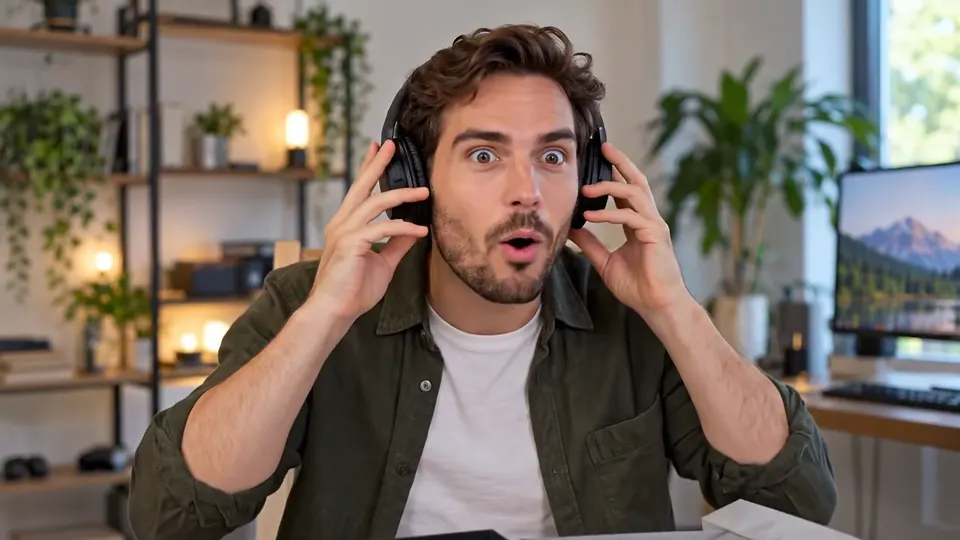 “Noise cancelling on. Wow. I cannot hear my fridge anymore.”
Real result, not edited afterwards. The voice and video are AI-generated. Music: “Le Bon Vivant”, Lebrozu (CC0).
Listen for the moments between sentences. That is where a matching system has the cleanest view of a song, and it is where a faint leftover would be easiest for you to hear too. If the gaps are quiet, the track is gone.
What to do when the song has lyrics
Singing is the hard case, for Studio’s Erase song and for any other tool. A sung line is a human voice, so it sits right next to your own speech, and it tends to stay with the voice when the backing track goes. Two things help:
- Click Still hear music? first. The deeper pass often pulls more of a sung line away from the speaker.
- Open Sliders and keep the Music slider at zero while you listen to the parts with singing. Your downloads use the mix you set.
If the singer is louder than the person talking, be honest with yourself: no tool takes that out cleanly. The fix then is editorial. Trim the few seconds where the chorus covers the speech, or let Studio mute only that short segment, and keep the rest of the video untouched.
Two shortcuts that don’t work
The comments under any video about claims repeat the same two ideas. YouTube’s own help pages contradict both:
- Keeping the clip short. YouTube says no length is automatically fair use, and a claim can land on just a few seconds of a popular song.
- Crediting the artist or writing “no infringement intended”. YouTube says neither makes a use fair; that question is decided case by case.
The reliable way to avoid a claim for a song in the background is for the song not to be there. That is the whole job of a music remover for copyrighted songs, and it is why we suggest cleaning before you post.
Common problems and how to fix them
| Problem | Likely cause | Fix |
|---|---|---|
| Erase song says it couldn’t remove the song | The song is loud or close to the voice in the mix | Download the video, clean the sound with Remove music, upload the clean file |
| The claim stays after a Studio edit | A second claimed piece is still in the video | Check every claimed segment; all of them must be muted, replaced or trimmed |
| Studio won’t save the edit | Over 100,000 views on a channel outside the Partner Program | Clean the file yourself and decide whether a new upload is worth a new URL |
| Trim isn’t offered | The video is six hours or longer | Cut the archive into parts and clean the parts that carry music |
| A sung line is still faintly there | Singing stays with the voice | Click Still hear music?, or trim the seconds where the singer covers the speech |
| The file is too long for the tool | Over 100 minutes | Split the video and run the parts one at a time |
Each full video uses one minute per minute of sound, counted by the second. New accounts get 10 free minutes, and packs start at $9.99 for 120 minutes on the pricing page. If something fails on our side, the minutes go back to your account. For the general walk-through, see how to remove music from a video; for vlogs filmed in shops and cafés, see removing store music from a vlog.
Questions
Will removing the music clear a Content ID claim?
On a new upload, there is usually nothing left to claim if the song is gone. On a video already claimed, YouTube lifts the claim once every claimed part is muted, replaced or trimmed, which you do in YouTube Studio.
Is a Content ID claim the same as a copyright strike?
No. YouTube says a claim is an automatic match that usually doesn’t affect your channel, while a strike follows a legal removal request and counts toward account termination.
Why did Erase song not work on my video?
YouTube warns that Erase song may fail when the song is hard to remove, such as a loud track or singing close to the voice. Cleaning the file yourself and uploading it is the way around it.
Can I undo an edit in YouTube Studio?
Not since June 2025. YouTube says saved Studio edits are permanent and suggests downloading the video before you change it.
Does AI Music Remover upload my whole video?
No, only the sound. The picture stays on your device, and the cleaned soundtrack is put back onto your frames in the browser.