
Open AI Music Remover in your phone’s browser, tap Choose file and pick the clip from your gallery, then listen to the free 30 seconds preview with earbuds in. If the song is gone and your voice is clear, process the whole clip and save the MP4 back to your phone. Nothing to install, and clips up to 200 MB work.
Why a browser beats another app
Most clips that need their music taken out were shot on a phone and never touch a computer: a Reel cut in the gallery editor, a story saved before posting, a video a friend sent you with a song stuck under it. Installing an editing app for one fix means another account, another subscription prompt and another place your footage gets copied to. AI Music Remover runs in the browser you already have, so the whole job is a web page you can close when you’re done.
It also means the heavy part of the clip stays put. Your phone reads the file, pulls out the sound and sends only that. The picture never leaves the phone, and when the result is ready the new soundtrack is laid back onto your original frames on the phone itself.
Step 1: Pick the clip from your gallery
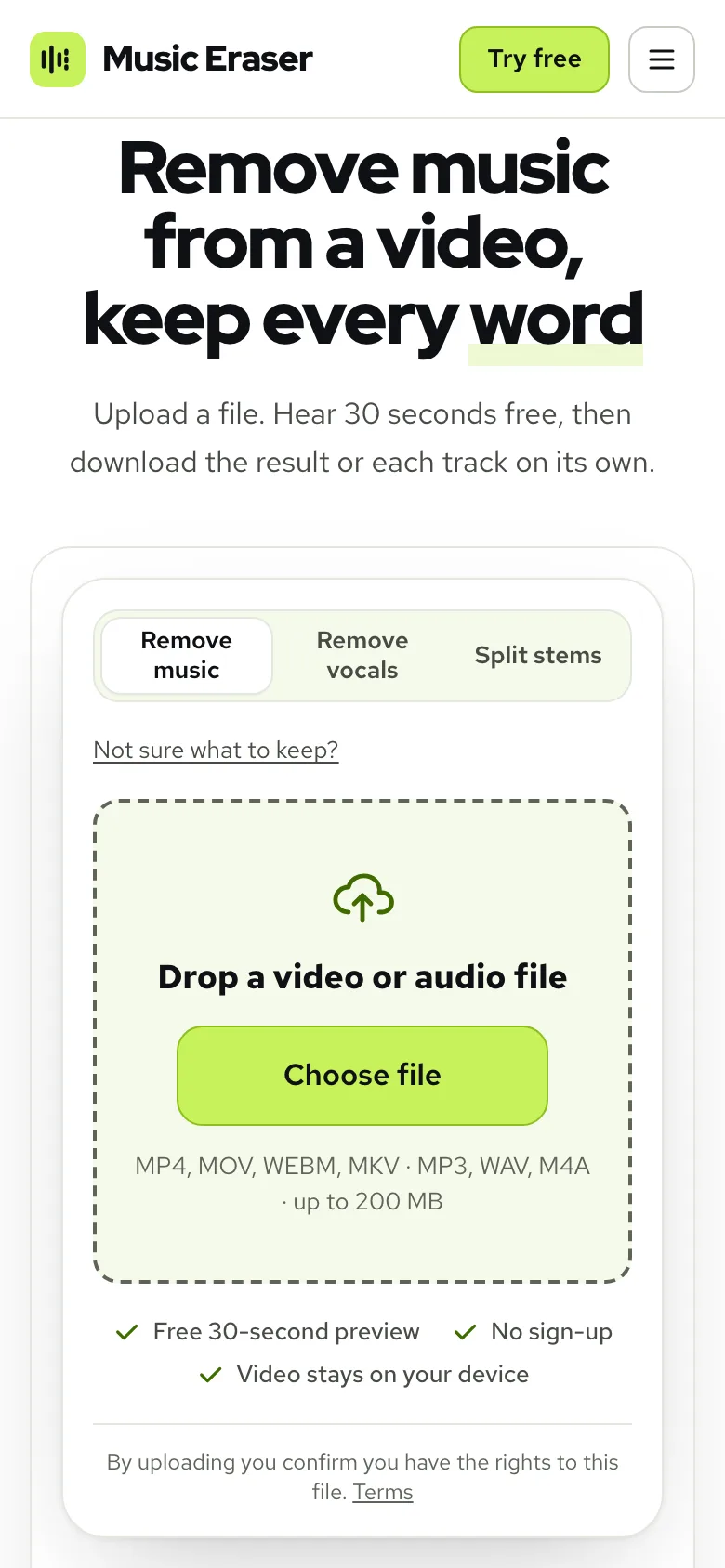
Go to the Remove music from video page and tap Choose file. Your phone asks where to look; pick your photo library for a clip you filmed, or your files for one you downloaded or were sent. Video in MP4, MOV, WEBM or MKV works, and so does audio in MP3, WAV or M4A if you only have the sound.
On a phone the limit is 200 MB per file, against 1.5 GB on a computer. The reason is memory: the browser holds the clip while it reads the sound out, and phones give a web page less room than a laptop does. A minute of 1080p phone video is usually well under the limit; a long 4K clip is the one that hits it.
| If the tool says | Why | Quickest fix |
|---|---|---|
| This file is too big for your browser | Over 200 MB on a phone | Trim it in the gallery editor, or export it at 1080p, then pick it again |
| This file is longer than the limit | Over 100 minutes long | Cut it into parts and run them one at a time |
| This file has no sound | The clip was saved muted | Find the version with sound; a muted copy has nothing to separate |
| We couldn’t read this file | An unusual format or a broken download | Save it again as MP4, or screen-record it as a last resort |
Step 2: Choose what goes
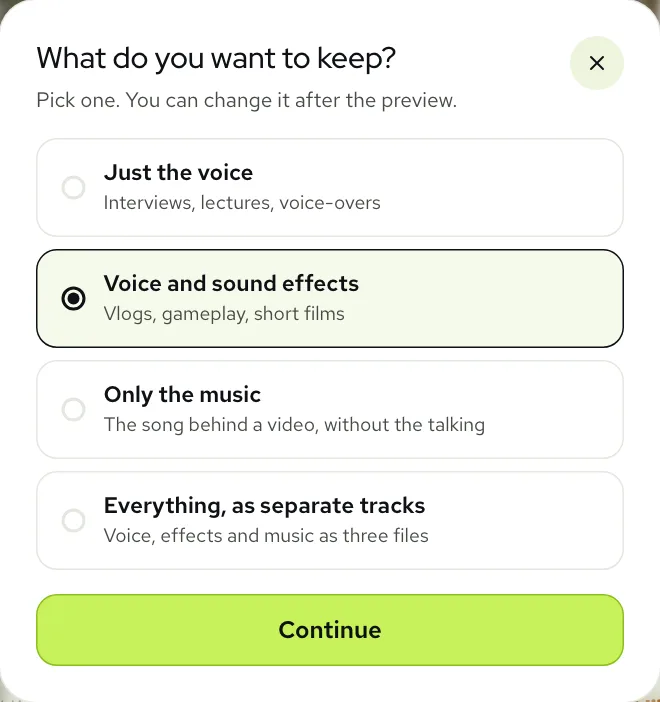
The tab that opens on the page, Remove music, is the right one for any clip where someone talks: it keeps the voice and the sounds around it and drops only the song. Switch to Remove vocals only if the clip is a song and you want the backing track for karaoke or a cover.
If you can’t decide, tap Not sure what to keep? and answer one question instead.
Step 3: Listen to the preview with earbuds in
The tool runs the first 30 seconds for free while you watch, 3 times a day, with no account. Here is the kind of clip people bring from their phones most: a vertical cooking reel with a cheerful track under the talking.
 “The secret is saving a cup of the pasta water.”
 “Add it slowly and keep stirring.”
 “Glossy, silky, done in ten minutes.”
Real result, not edited afterwards. The voice and video are AI-generated. Music: “Ave Pancakes”, United States Air Force Band of Mid-America (public domain).
Phone speakers are the worst place to judge this. They cut out the low end where a bass line hides, and they’re quiet enough that a faint trace sounds like silence. Put earbuds in, turn the volume up to where you’d really watch, and listen to the pauses between sentences. If nothing hums there, viewers won’t hear anything either.
Turning the phone sideways gives the player more room. The Presets row switches between Original, No music, Voice only, Effects only and Music only with one tap each, which is easier on a small screen than dragging sliders.
When a trace of the song is left
Two free fixes, both on the result screen. Still hear music? runs the clip again with a deeper pass and swaps in the new result. The Sliders view lets you set voice, sound effects and music separately, and whatever you set is what you download.
The hardest clip we have is a vertical one: a creator chatting to the camera with an old crackly dance record in the room. The crackle sounds like room noise, so some of it lands with the sound effects.
 “Quick update, the new video is coming out Friday.”
 “I shot the whole thing in one weekend.”
 “Tell me in the comments what you want to see next.”
Step 4: Process the whole clip and save it
Happy with the preview? Tap Process full video. The button tells you how many minutes it uses, one per minute of sound, counted by the second, so a 40-second reel costs well under a minute. New accounts come with 10 free minutes, which covers a lot of short clips. After that, packs start at $9.99 for 120 minutes (pricing).
A full clip takes a few minutes. You don’t have to keep the screen on: close the tab and we email you when it’s done. When you open the result again, the page asks you to choose the same video once more. That’s on purpose; your video never left the phone, so the tool needs it back to lay the new sound on it.
- 1Tap Download video (MP4). The browser saves it to your downloads.
- 2On an iPhone, open the Files app, find the clip under Downloads and use Share, then Save Video, to put it in Photos.
- 3On Android, the clip lands in your Downloads folder, and most gallery apps show it there straight away.
- 4Open it once in your gallery and play it through before you post, with earbuds in.
Only need the sound, say to drop it into an editor app? Download audio (MP3) is smaller and quicker to save. Results stay in My files for 3 days on a free account and 7 days on a paid one, so you can come back from a computer later and grab the WAV or the separate tracks.
Phone or computer: which to use
Both run the same tool and give the same result. The difference is the file size and how comfortable the checking is.
| Phone | Computer | |
|---|---|---|
| Biggest file | 200 MB | 1.5 GB |
| Longest file | 100 minutes | 100 minutes |
| Free preview | 30 seconds | 30 seconds |
| Checking the result | Earbuds, Presets row | Headphones, Sliders and the waveform |
| Best for | Reels, stories and clips shot on the phone | Long recordings, 4K files and editing projects |
A good split is to start on the phone, since that is where the clip is, and move to a computer only if the file is too big or you want to fine-tune the mix. Your account and your results are the same on both.
For a clip headed to a specific app, see removing music from a Reel or from a TikTok. For the full walk-through on a computer, read how to remove music from a video.
Questions
Is there an app to remove music from a video?
You don’t need one. AI Music Remover works in Safari, Chrome and other up-to-date phone browsers, so there is nothing to install and nothing to uninstall afterwards.
Can I remove music from a video on iPhone for free?
Yes, for the first 30 seconds: the preview is free with no sign-up, 3 times a day. New accounts get 10 free minutes for whole clips; after that, plans start at $9.99 a month for 200 minutes, or packs at $9.99 for 120 minutes.
Why is the file limit lower on a phone?
The browser holds the clip in memory while it reads the sound, and phones give a web page less memory. 200 MB on a phone covers most clips; use a computer for larger ones.
Does my video get uploaded?
No. Only the sound is sent. The picture stays on your phone, and the new soundtrack is put back onto it on your phone.
Where does the finished video go?
To your browser’s downloads. On iPhone, open it from the Files app and save it to Photos; on Android it shows in Downloads and in most gallery apps.